

How to install and use Xf1re on Linux
So you decided to become based, free and handsome so you abandoned Windows for Linux? Sadly many software are incompatible with our based OS, and even if you try to just 'wine' your way up to it working, there are tweaks you need to set, and on this guide you will be able to get it properly working.
Now, I will present an 'easiest' way to do it or a more recommended 'just easy' way to do it. Whatever you pick, lets get our hands dirty
Easiest way - Bottles
This alternative only requires for you to have Bottles. It will depends on how your distro works, you just need to do this:
- Get 'Bottles' (it depends on your distro)
- Create a new 'Bottle' with the 'Gaming' option set. As for its runner, you can use sys-wine or whatever that is not Proton
- Once do it, run the Xf1re installer with 'Run Executable...'. Then you can add 'xfire.exe' using 'Add Shortcut..." and navigate the prefix/bottle
- Now, before you jump to make it run! Swap you runner under 'Settings', to some GE Proton (at the time of writing, 10-34 works)
- Now it should be ready
Just easy way - Recommended
Ok, so this is my recommended way to install and run Xf1re, and it is 100% compatible with the Companion software I developed. There are some requirements that I will list bellow:
- Wine
- Winetricks
- Lastest GE-Proton. This one you can get it from the official Github of Glorious Eggroll
Step 1 - Create the prefix
So this part is really easy. Just create a new folder, anywhere, and then open the console/terminal and write the following:
- WINEPREFIX="/Path/To/Your/Folder" wine wineboot
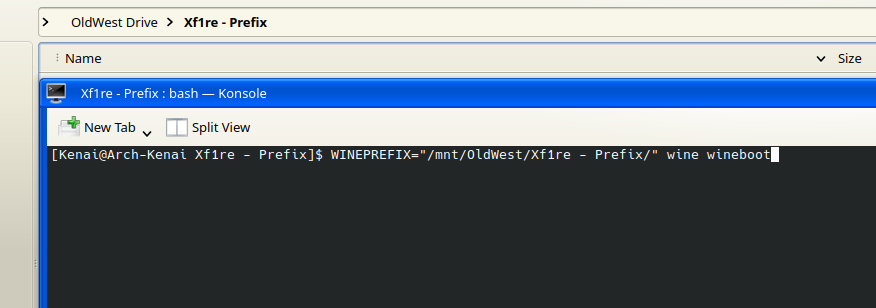
As you can see on the image above I just input the folder I created for the install. Then just hit enter and wait for Wine to create the prefix. You can see everything went well by going to the prefix folder and find now there are more files and folders inside 'drive_c' being one of them.
Step 2 - Install Xf1re using its installer
You now need to get Xf1re from the webpage (I assume you already had, since you are here) and then run said installer with the following command of the terminal (you can use the same window by the way):
- WINEPREFIX="/Path/To/Your/Folder" wine "Path/To/Xf1re/Installer
- WINEPREFIX="/mnt/OldWest/Xf1re - Prefix/" wine "Path/To/Xf1re/Installer/xf1re_installer.exe
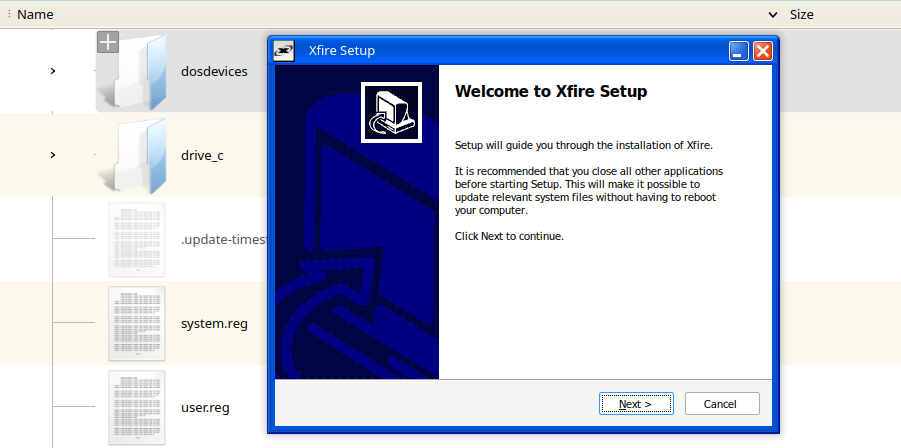
Just follow the instructions of the install wizard normally. This will probably end with just a white blocky screen that doesnt react to anything. Dont worry, this is just some compatibility error that will get fixed later. Just kill the process with whatever tool you have.
Step 3 - Download GE Proton
so just get the lastest GE Proton. 10-34 works, but for this new install I will just get the current lastest one: 11-1. For convenience I will just leave it on the 'drive_c' of the prefix folder, so i can find it easy.
Step 4 - Use Winetricks to fix the fonts
Now if you just try to run Xf1re you can (I will say it how to later, for the people going step by step) but the text will look weird. In order to fix this we will need Winetricks to install. To do this you only need to open the console/terminal and run the following command:
- WINEPREFIX="/Path/To/Your/Folder" winetricks
- WINEPREFIX="/mnt/OldWest/Xf1re - Prefix/" winetricks
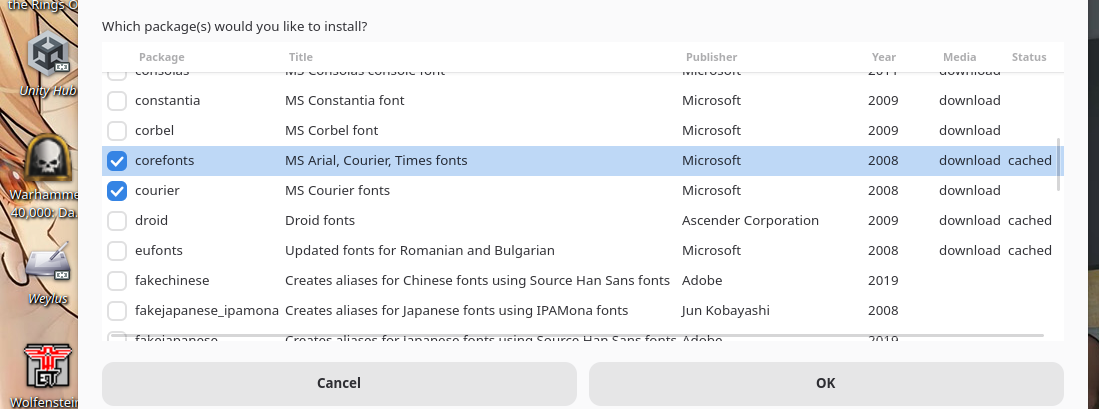
This hang out for a while and maybe some spooky windows will appear but just press ok and after a while it should return and you will see something like the image above: 'Core fonts' and others now have a tick besides them. You can now close Winetricks by pressing 'Cancel' until winetricks is no more or whatever
Step 5 - Time to run Xf1re!
This is where the fun begins. You can now finally run Xf1re and it will work. There is just one more setting you need to search first: you need to find 'wine64' inside the GE-Proton you downloaded. There are many ways to do so but I, on KDE, just go to the folder, press the search icon and type 'wine64'.
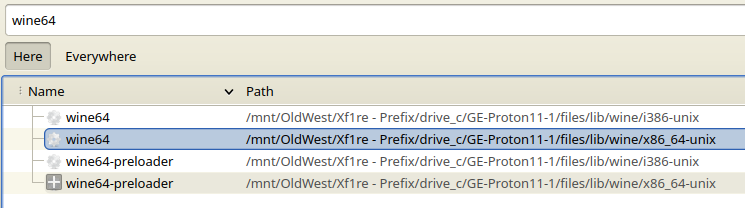
"Oh no! There are 2!", dont worry, you probably need one, the one that is on "x86_64-unix". Dont close the window yet, since we will need to know its location.
With this open, get a new window or split the view so we can find where your 'updater.exe' of Xf1re is located. It should be really easy since its is on the main folder of the software. If you let everything by default it should be on "drive_c">"Program File (x86)">"Xf1re". Now dont be tricked by the "Xfire.exe" you want to point to "updater.exe" since this will check your files and update the game list when there is an update THEN run the software.
With this 2 locations at hand you can run the software by running the following command on the terminal:
- WINEPREFIX="/Path/To/Your/Folder" "/Path/To/Wine" "Path/To/updater.exe"
- WINEPREFIX="/mnt/OldWest/Xf1re - Prefix/" "/mnt/OldWest/Xf1re - Prefix/drive_c/GE-Proton11-1/files/lib/wine/x86_64-unix/wine64" "/mnt/OldWest/Xf1re - Prefix/drive_c/Program Files (x86)/Xfire/Xfire.exe"
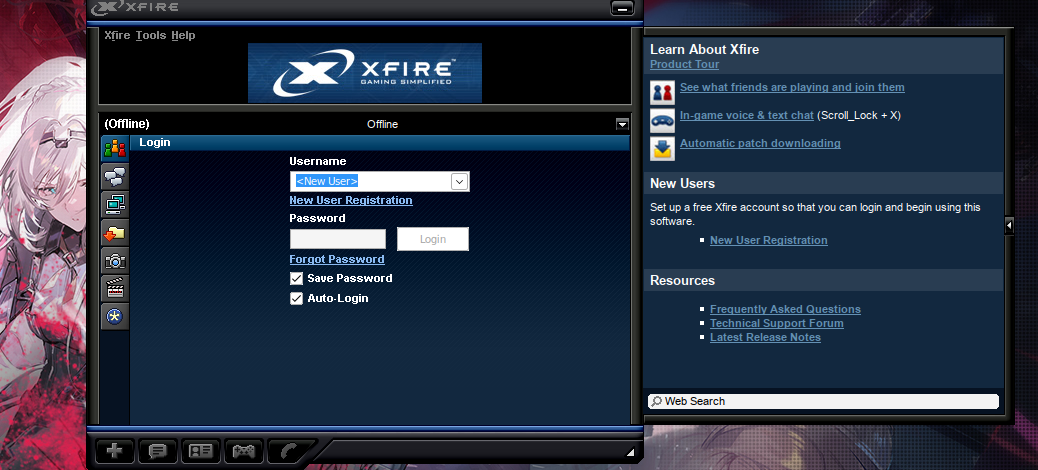
And thats it! Wasnt that hard right? I can testify it was a pain in the ass to find out this tho. But I now the following question is "Ok... now do I REALLY have to type that command line when I want to run Xf1re?!", and the answer to that is yes! but also no. You can create a shortcut to do this for you. This leads me to:
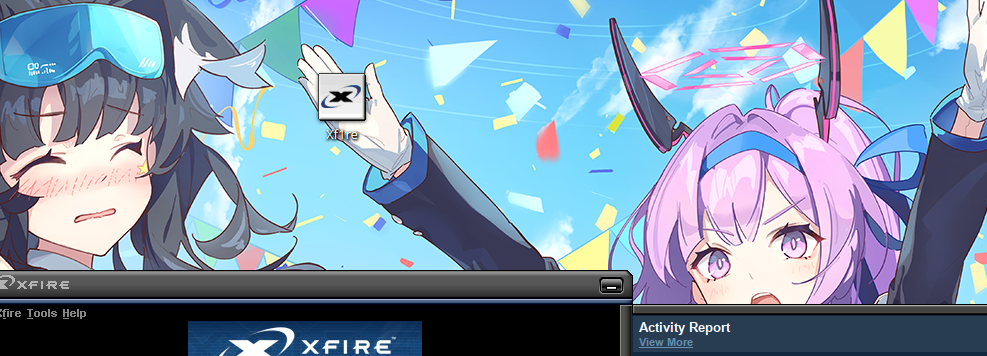
Bonus Stage - Creating desktop shortcut
So first just erase the one that wine probably created believing it could run the software. Note that what Im about to tell you is for KDE environments, to simply do this just right click anywhere and select 'create empty file' and name it to something like 'Xf1re.desktop', the important thing is the .desktop. After that is done open it with any text editor and add the following:
[Desktop Entry]
Exec=env WINEPREFIX="/Path/To/Your/Xf1re/Prefix" "Path/To/Your/Wine64" "Path/to/Your/Updater.exe"
Name=Name for your shorcut
Path=/Path/To/Your/Xf1re/Prefix
- chmod +x yourshortcutname.desktop
Limitations
Sadly here is where I will now tell you the limitations of your current Xf1re install:
- It wont detect games by itself. You can try to run the games with wine64, but I hardly think thats a good idea. I recommend you just getting my Linux software companion app on the 'Software' part of this web. I mean, you are already here.
- If you put your system to 'sleep' (or if it does it by idle) then you have a 50/50 chance of Xf1re freezing